In this module
Module 1 · Lesson 1.3 · [CORE] · From Idea to First Paying Customer
Input: the live landing page URL you published in Lesson 1.2
Output: you can watch a recording of any visit and read the three numbers that judge your page (views, clicks, signups) - the evidence 1.4’s go / iterate / kill call runs on
Progress: M1 · 3 of 5
Run a smoke test without tracking and you get hundreds of clicks, a handful of signups, and no way to tell whether the offer is wrong or the form is broken. A session replay would have caught the broken form on visitor one. The fix is installing tracking before traffic starts.
The two tools you need #
A tracking snippet is a small block of code (HTML or JavaScript) that you copy from one site and paste into a field on your page builder. You do not write or edit it. Once installed, each snippet records visitor activity to a dashboard you read later.
You need two things regardless of which ad channel you pick in Lesson 1.4:
- Microsoft Clarity - session recordings and heatmaps. Not needed to read conversion numbers, but essential when conversion is low and you need to see why. Watch ten replays after 300 visits; the pattern usually appears within the first three. Diagnose a <3% rate here before you rewrite your hypothesis.
- Google Analytics 4 - your analytics foundation. Tracks page views, clicks, and form submits. Create a GA4 property at analytics.google.com, copy the tracking snippet, paste it into your builder’s head-tag field.
(Lesson 1.4 adds one more snippet for the ad platform you pick there - same 60-second copy-paste process, nothing to prepare now.)
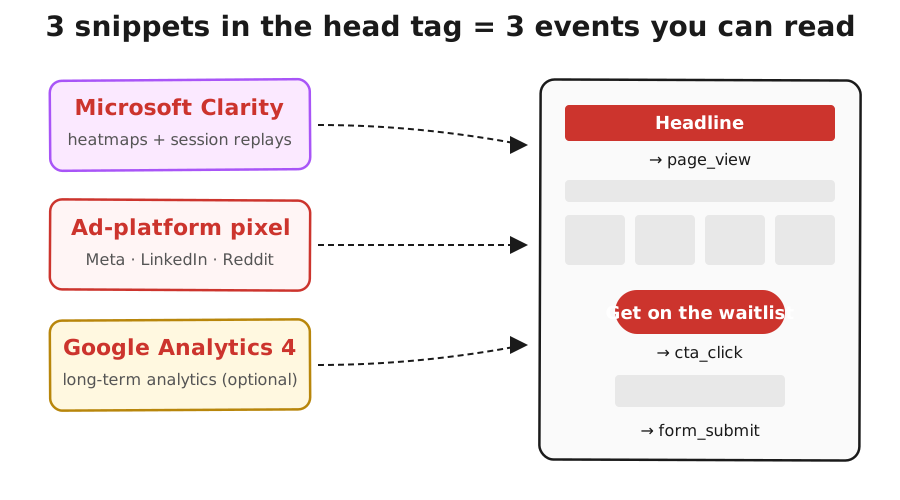
All snippets paste into the head-tag field - the hidden block at the top of every webpage. Page builders label this “head,” “custom code,” or “tracking scripts” (Mixo: Settings → Custom Code → Header).
The three numbers you’ll read #
The 3 numbers you will read in Lesson 1.4:
| Event | What it measures |
|---|---|
| Page view | Total visitors who reached the page |
| CTA (call-to-action) click | Visitor clicked the email-form button - measures headline + value-prop strength |
| Form submit | Email address actually submitted - measures friction |
Conversion rate = form submits ÷ page views. That is the number your hypothesis is judged against.
Install the tracking #
Install:
- Create accounts: sign in to Microsoft (for Clarity) and Google (for GA4). Most people already have one or both - reuse them.
- Install Clarity (clarity.microsoft.com, 60 seconds): copy the snippet, paste in your page builder’s head-tag field.
- Install GA4 (analytics.google.com): copy the GA4 snippet, paste in the head-tag field. If you plan to use Google Ads in 1.4, you’ll link GA4 in Google Ads Settings there.
- Verify: open your page in an incognito window. Wait 60 seconds. Clarity: your visit appears as a session recording. GA4: test visit registers in your dashboard.
- Verify the conversion event too: submit the waitlist form once with a test email and confirm a form-submit event appears in GA4’s Realtime report. That event is the top of the conversion-rate fraction in Lesson 1.4 - if it doesn’t fire now, your week of ad spend reports zero conversions no matter what visitors do. (Builder forms sometimes don’t trigger GA4’s automatic form tracking; if nothing appears, use your builder’s own signup counter as the submit count in 1.4 instead.)
(One “custom code” field? That field is the head-tag - paste all snippets there.)
Success check: three things are visible - your test visit as a Clarity recording, the same visit in GA4’s Realtime report, and your test signup as a form-submit event. All three showing means 1.4’s numbers will be readable.
If the dashboard stays empty #
If this fails: Clarity shows “No data yet” after 5 minutes.
- Why: the snippet is in the wrong field - usually pasted in the page body instead of the head tag, or your builder’s preview mode is blocking scripts.
- Fix: double-check the field name; most builders separate “head code” from “body code,” and the snippet must go in head. If your builder only has one “custom code” field, that field is usually the right one. Still nothing after the fix? Wait one hour and re-check. Clarity sometimes lags on the first install.
If this fails: GA4 shows no test visit after 5 minutes.
- Why: same cause as Clarity - GA4 snippet pasted in the wrong field, or the builder’s preview mode is blocking it.
- Fix: move the GA4 snippet to the head-tag field, publish the page, then refresh the GA4 Realtime report. GA4 needs a real page load (not preview) to register the first hit.
Before you close the dashboards, watch your own Clarity session recording once and confirm your visit shows in GA4’s Realtime report. You’ll probably spot something as a visitor that you missed as the builder - a slow-loading image, a button below the fold. Surfacing exactly those gaps is what you just installed tracking for.
Done: Clarity shows your recording AND GA4 shows your test visit.
You have now: Founding Hypothesis (1.1) + a clear landing page (1.2) + tracking installed (1.3). Demand starts in 1.4.
Next: 1.4 · Smoke Test: Run It and Read the Signal - drives 300 visits at the tracking you just installed, then reads the 3 numbers (page view, CTA click, form submit).
If blocked: see “If this fails” above.
See it in action: Module 1 walkthrough: Mia builds TutorMatch
Built by JetThoughts as part of the From Idea to First Paying Customer free curriculum.