In this post
Need a CSS triangle in a Tailwind project without dropping into custom CSS? Use a zero-size box and color one border. Four directions, four snippets - copy, paste, ship.
Triangle Down #
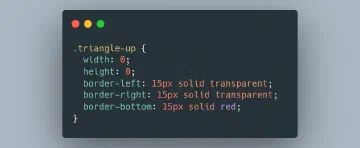
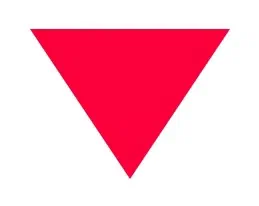
Set width and height to 0, then color one border solid and the two adjacent borders transparent. The browser draws the angled edges between them as a filled triangle.
w-0 h-0collapses the box.border-t-[75px] border-t-red-500paints the top border full height and color.border-l-[50px] border-l-transparentandborder-r-[50px] border-r-transparentset the side borders to half the width with the color transparent.
<div class="w-0 h-0
  border-l-[50px] border-l-transparent
  border-t-[75px] border-t-red-500
  border-r-[50px] border-r-transparent">
</div>
Triangle Left #
<div class="w-0 h-0
  border-t-[50px] border-t-transparent
  border-r-[75px] border-r-blue-500
  border-b-[50px] border-b-transparent">
</div>

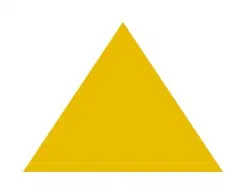
Triangle Up #
<div class="w-0 h-0
  border-l-[50px] border-l-transparent
  border-b-[75px] border-b-yellow-500
  border-r-[50px] border-r-transparent">
</div>
Triangle Right #
<div class="w-0 h-0
  border-t-[50px] border-t-transparent
  border-l-[75px] border-l-green-500
  border-b-[50px] border-b-transparent">
</div>

All four examples produce a roughly equilateral triangle. To change the proportions, adjust the border widths in the [*px] brackets - the colored border controls the height (or width, for left/right variants), and the two transparent borders control the opposite dimension.
For more Tailwind techniques, see our guides on CSS triangles without Tailwind and full-screen vertical centering.
If you inherited a frontend where developers hand-roll CSS triangles instead of using an icon library, that gap between effort and result is worth a closer look. Our code quality evaluation guide walks through the questions that surface these shortcuts.